



Home › Forums › BulletProof Security Pro › BPS Pro Read Me First – General Troubleshooting
Tagged: BPS Pro General Troubleshooting
- This topic has 13 replies, 7 voices, and was last updated 12 months ago by
AITpro Admin.

-
AuthorPosts
-
AITpro Admin
KeymasterThis Forum is for Posting BulletProof Security Pro Questions & Comments. If your Question or Comment is regarding BulletProof Security Free then please post in the BulletProof Security Free Forum.
BulletProof Security Pro General Help Info, Links & Troubleshooting Steps
BPS Pro Upgrade Methods
https://forum.ait-pro.com/forums/topic/bulletproof-security-pro-bps-pro-upgrade-installation-methods/BPS Pro Installation, Activation & Setup Wizard Video Tutorial
https://forum.ait-pro.com/video-tutorials/BPS Pro Xternal Tools (XTF) Video Tutorial
https://forum.ait-pro.com/video-tutorials/#xternal-toolsAutoRestore|Quarantine Guide & Troubleshooting
https://forum.ait-pro.com/forums/topic/autorestore-quarantine-guide-read-me-first/Plugin Firewall Read Me First Troubleshooting
https://forum.ait-pro.com/forums/topic/plugin-firewall-read-me-first-troubleshooting/Security Log|HTTP Error Log Read Me First Troubleshooting
https://forum.ait-pro.com/forums/topic/security-log-http-error-log-read-me-first/Maintenance Mode Guide
https://forum.ait-pro.com/forums/topic/maintenance-mode-guide-read-me-first/WordPress Network|Multisite Specific Help Information
https://forum.ait-pro.com/forums/topic/network-multisite-read-me-first/
Custom php.ini Setup, PHP Errors & PHP Error Log Help Posts
Troubleshooting PHP Errors
https://forum.ait-pro.com/forums/topic/how-to-troubleshoot-php-errors-php-errors-in-your-php-error-log/PHP5.3.x & newer PHP versions Custom php.ini Setup
https://forum.ait-pro.com/forums/topic/custom-php-ini-file-setup-php5-3-x/General custom php.ini help information (also has older PHP5.2.x custom php.ini setup info)
https://www.ait-pro.com/aitpro-blog/3576/bulletproof-security-pro/custom-php-ini-faq/OLDER/OUTDATED: PHP5.2.x Custom php.ini Setup by Host
https://www.ait-pro.com/aitpro-blog/2853/bulletproof-security-pro/php-ini-general-and-host-specific-php-ini-information-for-bps-pro/BulletProof Security Pro Menus
BPS Pro 16.1+ WP NAV menus. Note: Most likely a new menu will be created in BPS Pro plugin pages. The new BPS Pro inpage menu will be a 3 level deep nested menu. WP NAV menus only allow 2 level deep nested menus. The BPS Pro WP NAV menu will only have 1 menu and 1 menu item.
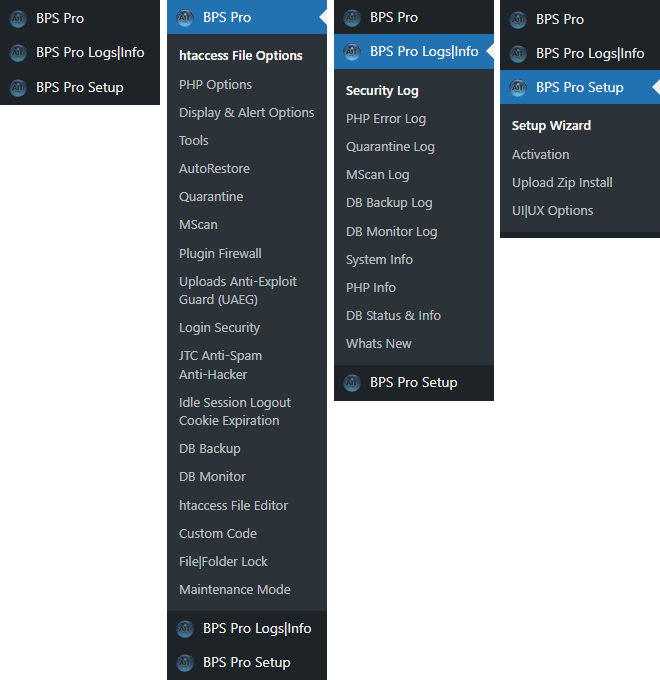
Older BulletProof Security Pro Menus
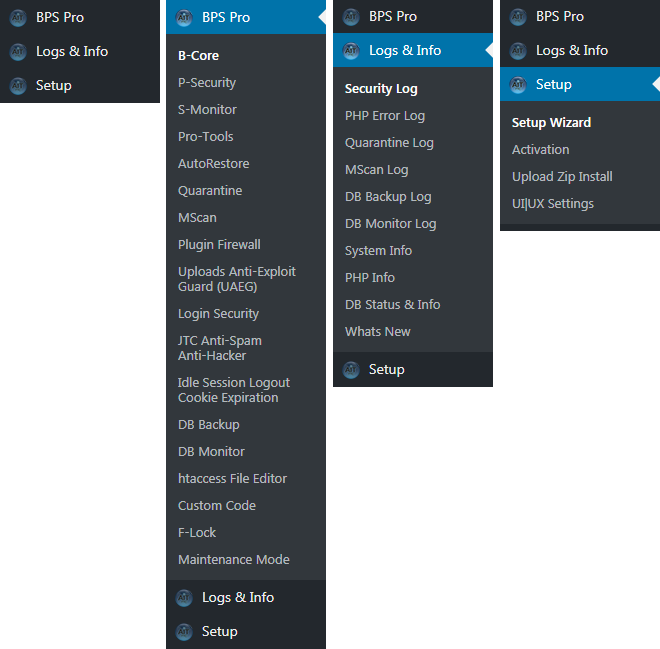
BulletProof Security Pro Plugin Conflict vs Actively Blocking TerminologyPlugin conflict: A plugin conflict would be a scenario where you are using 2 plugins or plugin features that do the exact or a very similar thing. Example: You are using 2 Login Security features on your website. If both Login Security features are calling the same WordPress Hooks (actions and/or filters) then the 2 plugins will most likely compete with each other and 1 plugin will always override the other plugin. The solution is to choose whichever Login Security feature you want to use in either Plugin and then turn off the Login Security feature in the other plugin.
Actively Blocking: BPS Pro is a security plugin that checks for and blocks malicious attack strings as well as a number of other potentially malicious things that could be an attack against your website. If BPS Pro blocks something legitimate in another Plugin or Theme because it matches a hacking attack or other malicious attack against your website then a whitelist (exclude) rule can be quickly and easily created using BPS Pro Custom Code to allow (whitelist) whatever is being blocked in another Plugin or Theme. The BPS Pro Plugin Firewall protects the WordPress Plugins folder and all plugins in the plugins folder. See this Forum topic link for additional help information about the Plugin Firewall: https://forum.ait-pro.com/forums/topic/plugin-firewall-read-me-first-troubleshooting/
The BPS Pro Security Log is a Primary Troubleshooting Tool: Your BPS Pro Security Log logs blocked hackers, spammers, etc. & also logs anything else that BPS Pro may be blocking in another Plugin or Theme. To confirm or eliminate that BPS Pro is blocking something legitimate in another Plugin or Theme, check your BPS Pro Security Log for any log entries with that Plugin or Theme name. If you have confirmed that BPS Pro is blocking something in another Plugin or Theme, search the forum using that Plugin or Theme name for a solution. If no search results are returned for that Plugin or Theme name then create a new Forum Topic and post the Security Log entry from your BPS Pro Security Log that shows exactly what is being blocked in that Plugin or Theme. A whitelist (exclude) rule can then be created to allow whatever is being blocked by BPS Pro. The BPS Pro Security Log logs all 403 errors whether or not BPS Pro is related to or causing the 403 error. Example: Something installed on your server is causing a 403 error. That 403 error will be logged in the BPS Pro Security Log.
BulletProof Security Pro Troubleshooting Steps:
The BPS Pro plugin has built-in troubleshooting capability and should not be deactivated for troubleshooting. Deactivating BPS Pro removes the built-in troubleshooting tools/capabilities. You can turn all BPS Pro security features On or Off for troubleshooting to isolate exactly which BPS Pro security feature is causing an issue/problem or to confirm or eliminate BPS Pro as the cause of an issue/problem. BPS Pro Xternal Tools (XTF) are intended to be used when you are unable to login to your website to fix an issue/problem. You can turn Off BPS Pro features using the XTF Form options without having to be logged into your website.
BPS Pro Xternal Tools (XTF) Obsolete:
BPS Pro Xternal Tools (XTF) Guide
https://forum.ait-pro.com/forums/topic/xternal-tools-xtf-guide/
BPS Pro Xternal Tools (XTF) Video Tutorial
https://forum.ait-pro.com/video-tutorials/#xternal-toolsTroubleshooting Steps Examples: If you believe the issue/problem is being caused by the Plugin Firewall then just do Step 3. If you believe the issue/problem is being caused by the Uploads Anti-Exploit Guard then just do Step 4. If you believe the issue/problem could be caused by either the root .htaccess file or wp-admin .htaccess file or the Plugin Firewall .htaccess file then do steps 1, 2 and 3. If you believe the issue/problem could be caused by Login Security then just do Step 6. To eliminate BPS Pro entirely do all of these troubleshooting steps below.
Note: After doing each troubleshooting step, test whatever is not working to see if it is now working. It could also be possible that 2 things are causing a problem. Example scenario: Doing step 1 and step 2 allow whatever was not working to start working. That would mean both the root .htaccess file and the wp-admin .htaccess file are blocking something legitimate.
1. On the Security Modes page, click the Root Folder BulletProof Mode Deactivate button. See Custom Code Note if doing this step works.
2. On the Security Modes page, click the wp-admin Folder BulletProof Mode Deactivate button. See Custom Code Note if doing this step works.
3. On the Security Modes page, click the Plugin Firewall BulletProof Mode Deactivate button. See Plugin Firewall Test Mode Note.
4. On the Security Modes page, click the UAEG BulletProof Mode Deactivate button.
5. If an issue/problem is related to files being locked with F-Lock then unlock files on the F-Lock page.
6. If an issue/problem is related to Login Security turn Off Login Security on the Login Security & Monitoring page.
7. If an issue/problem is related to JTC Anti-Spam|Anti-Hacker turn Off JTC Anti-Spam|Anti-Hacker on all Forms by unchecking the Form checkboxes under the Enable|Disable JTC For These Forms option on the JTC Anti-Spam|Anti-Hacker page.
8. If an issue/problem is related to a custom php.ini file (if you created a custom php.ini file for your website) rename it to php.ini.BAK
9. If an issue/problem is related to files being autorestored and/or quarantined turn Off AutoRestore|Quarantine on the AutoRestore page. Note: If you are manually editing or uploading files to your website see the AutoRestore|Quarantine Manual File Editing/Uploading Correct Usage steps: https://forum.ait-pro.com/forums/topic/autorestore-quarantine-guide-read-me-first/#procedural-stepshtaccess Files Note: Both Root BulletProof Mode and wp-admin BulletProof Mode should be activated together. If you only activate Root BulletProof Mode and do not activate wp-admin BulletProof Mode then some wp-admin Dashboard functions (configuring Widgets, etc.) may not work correctly on some web hosts.
Custom Code Note: If you have isolated a problem to the root or wp-admin .htaccess file and you have added additional custom .htaccess code or additional .htaccess code from another plugin to BPS Custom Code then you can either use the Custom Code Export|Import|Delete Tools or manually cut (not Copy) all of your additional custom .htaccess code out of all BPS Custom Code text boxes and save that custom .htaccess code to a Notepad or Notepad++ text file, Click the Save Root Custom Code button (or the wp-admin Custom Code button), go to the BPS Security Modes page and click the Root Folder BulletProof Mode Activate button (and/or the wp-admin Folder BulletProof Mode Activate button). You can then further isolate which custom .htaccess code is the problem by adding only 1 block of additional custom code back into each BPS Custom Code text box at a time and do all of the Custom Code steps. Then add another block of custom code and do all of the Custom Code steps, etc.
Plugin Firewall Test Mode Note: As of BPS Pro 12.9+ versions a new option: Test Mode has been added to the BPS Pro Plugin Firewall settings.
Plugin Firewall Test Mode
Clicking the Test Mode button will allow you to check the frontend of your website as if you are visitor to your website to check for any problems or errors. You do not need to check the backend wp-admin Dashboard of your site. AutoPilot Mode is also enabled when you are in Test Mode. Plugin Firewall AutoPilot Mode will automatically create any new Plugin Firewall whitelist rules (once every 1 minute in Test Mode) for frontloading plugin scripts on the frontend of your website while Test Mode is turned On. Clicking the Plugin Firewall Activate or Deactivate button turns Off Plugin Firewall Test Mode. The BPS Pro Dashboard Status Display will display: PFW: Test Mode : 1 Min : 00:00 AM when Test Mode is turned On.Plugin Firewall Test Mode Example Usage:
If you have these example plugins installed: WooCommerce, NextGen Gallery and Contact Form 7 then you would visit/click your main WooCommerce store pages: Shop, Cart, Checkout, Registration and My Account, visit/click you NextGen Gallery page and visit/click your Contact Form 7 contact page/form. If you do see a problem or error, wait 1 minute and check the problem or error again. AutoPilot Mode/Test Mode is designed to automatically create new Plugin Firewall whitelist rules for any problems or errors that are detected when the next Plugin Firewall AutoPilot Mode Cron job runs (once every 1 minute in Test Mode). You can also check the actual functionality of plugins, but normally that should not be necessary to do. After you are done using Test Mode, you can either leave the AutoPilot Mode Cron Check Frequency setting to 1 minute or you can change the Cron Check Frequency to a different Cron check frequency setting.Login Security, JTC Anti-Spam|Anti-Hacker Note: If you are unable to login to your website due to an issue/problem with Login Security or JTC Anti-Spam|Anti-Hacker see the BPS Pro Xternal Tools (XTF) Guide link or XTF video tutorial link above. Or you can use FTP or your web host control panel file manager, rename the /bulletproof-security/ plugin folder to /_bulletproof-security/, login to your site, rename the bulletproof-security plugin folder name back to its original name, go to Login Security and unlock your user account or go to JTC and correct your JTC settings.
AutoRestore|Quarantine Note: For AutoRestore|Quarantine Troubleshooting steps click this link: https://forum.ait-pro.com/forums/topic/autorestore-quarantine-guide-read-me-first/#ARQ-Troubleshooting
BPS Pro B-Core Specific and additional .htaccess Root and wp-admin BulletProof Mode setup, removal & troubleshooting steps:
Use the BPS Pro Setup Wizard or manually do these steps in B-Core…
BPS Pro 11.9+ & BPS .53.8+ B-Core htaccess Files Setup Steps:
1. Click the Root Folder BulletProof Mode Radio Activate button.
2. Click the wp-admin Folder BulletProof Mode Activate button.Older BPS versions: B-Core htaccess Files Setup Steps:
1. Click the Create default.htaccess File button on the Security Modes page.
2. Click the Create secure.htaccess File button on the Security Modes page.
3. Select the Activate Root Folder BulletProof Mode Radio button and click the Activate|Deactivate button on the Security Modes page.
4. Select the Activate wp-admin Folder BulletProof Mode Radio button and click the Activate|Deactivate button on the Security Modes page.BPS Pro Installation, Activation & Setup Wizard Video Tutorial: https://forum.ait-pro.com/video-tutorials/
Note: It is recommended that use a Custom Permalink Structure: https://codex.wordpress.org/Using_Permalinks#Choosing_your_permalink_structure
Note: The Deny All and Uploads Anti-Exploit Guard BulletProof Modes are setup automatically. The Plugin Firewall BulletProof Mode is setup automatically during the Setup Wizard or can be manually setup using the Plugin Firewall Tools. See the Plugin Firewall Read Me First Troubleshooting link below for additional information about the Plugin Firewall.htaccess File Troubleshooting Steps: Unable to Login to Your Website:
Note: If you have AutoRestore turned On/activated then you will need to delete this file first: /wp-content/bps-backup/autorestore/root-files/auto_.htaccess and then delete the .htaccess file in your WordPress installation folder (same folder as your wp-config.php file).
1. Use FTP or your Web Host Control Panel File Manager and delete the .htaccess file in your website root folder and the .htaccess file in your wp-admin folder. If you do not see the root and wp-admin htaccess files then select “Show Hidden Files” in your FTP application or in your web host control panel file manager.
See Custom Code Note
2. Log into your website and Activate all BulletProof Modes.Note: FTP software like FileZilla or WinSCP hides .htaccess files by default. If you do not see the root .htaccess file then select “Show hidden files” to show all hidden files.
Note: If the problem is being caused by custom code that you added then before clicking the AutoMagic buttons in step 2, edit or delete that custom code and save your custom code edits/changes before clicking the AutoMagic buttons.
Note: If doing these steps above does not allow you to login to your website then do these steps below:
1. FTP to your website and download this file: /wp-content/plugins/bulletproof-security/htaccess/default.htaccess.
2. Upload the default.htaccess file to your wordpress installation folder (the same folder that wp-config.php is in).
3. Rename the default.htaccess file to .htaccess (removing “default” from the file name).Note: These steps above apply to issues/problems that are directly related to your root .htaccess file. If your are unable to login to your site due to an issue/problem with Login Security or JTC Anti-Spam|Anti-Hacker see the BPS Pro Xternal Tools (XTF) Guide link or XTF video tutorial link above
Web Host Compatibility Check
BPS and BPS Pro are compatible with all Web Hosts worldwide (350,000+).cPanel Hotlink Protection Tool – No longer an issue/problem.
BulletProof Security Alert will not go away – “BPS Pro Alert! Your site does not appear to be protected by BulletProof Security” – No longer an issue/problem.
500 Internal Server Error After Activating BulletProof Mode for your Root Folder
Some Web Hosts do not allow you to use the “Options” Directive in .htaccess files. If you see a 500 Internal Server Error then comment out the “Options” Directive by adding a pound sign (#) in front of Options -Indexes in your Root .htaccess file as shown below.
# DO NOT SHOW DIRECTORY LISTING
# If you are getting 500 Errors when activating BPS then comment out Options -Indexes
# by adding a # sign in front of it. If there is a typo anywhere in this file you will also see 500 errors.
#Options -Indexes
Some Web Hosts do not allow you to use the “DirectoryIndex” Directive in .htaccess files. If you see a 500 Internal Server Error then comment out the “DirectoryIndex” Directive by adding a pound sign (#) in front of DirectoryIndex in your Root .htaccess file as shown below. Known Hosts with this issue: NordNet
# DIRECTORY INDEX FORCE INDEX.PHP
# Use index.php as default directory index file
# index.html will be ignored will not load.
#DirectoryIndex index.php index.html /index.php
500 Internal Server Error After Adding New custom .htaccess Code To BPS Custom Code
If you have added custom .htaccess code to BPS Custom Code, saved it, clicked the AutoMagic buttons and activated BulletProof Modes and there is either invalid .htaccess code in that custom .htaccess code or your particular Server/Host does not allow something in that custom .htaccess code then your site will crash with a 500 Internal Server Error.
1. Use FTP or your web host control panel file manager and delete your root .htaccess file (or the wp-admin .htaccess file if the custom .htaccess code was added to wp-admin Custom Code).
2. After you have deleted the .htaccess file or files, login to your site, go to BPS Custom Code, cut (NOT copy) the custom .htaccess code you added to any BPS Custom Code text boxes and paste that custom .htaccess code to a Notepad text file (use Notepad or Notepad++ – do NOT use Word or WordPad) and save it on your computer.
3. After cutting all custom .htaccess code that you have added to any BPS Custom Code text boxes, click the Save Root Custom Code button (and/or Save wp-admin Custom Code button), go to the Security Modes page and click the Root folder BulletProof Mode (and/or wp-admin Folder BulletProof Mode) Activate button.Your site should not crash at this point with a 500 Error. You can then check and test your custom .htaccess code individually. ONLY add one section of your custom .htaccess code at a time to BPS Custom Code text boxes (and do ALL the Custom Code steps) to isolate which custom .htaccess code is causing the 500 error. Either correct whatever needs to be corrected or just do not use the custom .htaccess code on your website if it does not work/is not allowed on your particular Host/Server.
DSO Server Type: htaccess File Editor Not Working, Unable to Backup or Restore Files
If your Server API type is DSO and your WP Filesystem API Method is NOT “direct” then you will need to do some additional setup steps for a DSO Server. You can check your Server API and WP Filesystem API Method on the BPS System Info page. If you see that your Server API is DSO and your WP Filesystem API Method is NOT “direct” then you will need to do these additional installation steps for DSO.
BulletProof Security WP Error: “no input file specified”- Permalink Problems/404 Errors – using the .html permalink hack is causing 404 Errors
If you see a “no input file specified” error then there is something wrong with your WordPress custom permalink structure that needs to be corrected. Another cause of 404 Errors is using the .html Permalink hack. Using .html in your WordPress Permalink Structure is considered a hack and is not a standard WordPress Custom Permalink Structure. Example Permalink .html Hack: /%postname%.html. Many years ago this supposedly increased page ranking and SEO. If that was ever really true it is definitely not true now. Using this permalink hack will only cause your website problems and BulletProof Security will not work with this permalink hack. You will need to change your custom permalink to a standard WordPress custom permalink structure in order to be able to use BulletProof Security.
403 Forbidden Error or 500 Internal Server Error when updating/upgrading BPS – No longer an issue/problem.
-
This topic was modified 4 years, 11 months ago by
-
This topic was modified 4 years, 11 months ago by
-
This topic was modified 4 years, 11 months ago by
-
This topic was modified 4 years, 11 months ago by
-
This topic was modified 4 years, 10 months ago by
-
This topic was modified 4 years, 10 months ago by
-
This topic was modified 4 years, 10 months ago by
-
This topic was modified 4 years, 10 months ago by
Paul
ParticipantI have had a message never seen before
WARNING! BPS has detected that Safe Mode is set to On in your php.ini file.
If you see errors that BPS was unable to automatically create the backup folders this is probably the reason why.
Not sure why?KeymasterSee this forum topic for the solution: http://forum.ait-pro.com/forums/topic/warning-bps-has-detected-that-safe-mode-is-set-to-on-in-your-php-ini-file/#post-1526
Living Miracles
ParticipantI came across the Additional (Automated) BulletProof Modes ~ Manual Controls (B-Core > Security Modes> htaccess File Security Modes) and noticed these two notes:
“Your BPS Master htaccess folder should already be automatically protected by BPS Pro, but if it is not then activate BulletProof Mode for your BPS Master htaccess folder.”
“Your BPS Backup folder should already be automatically protected by BPS Pro, but if it is not then activate BulletProof Mode for your BPS Backup folder. ”
How do I know if both of these folders are already protected by BPS Pro?
KeymasterOn the Security Status page you should see this below. BPS will alert you if something needs your attention.
√ Deny All protection activated for BPS Master /htaccess folder
√ Deny All protection activated for /wp-content/bps-backup folderoklagonian
ParticipantI had a website with BPS installed and I lost most of WordPress while trying to upgrade and BPS fell of my plugin list. I am trying to reinstall but cant seem to activate / re-activate as it will not accept activation code…….I went thru the steps and I just receive the same activation code that I already have……any help appreciated.
Richard Harding
ParticipantI have BPS PRO v12.6.1. I receive the message “Update Failed: Plugin update failed.” when attempting to upgrade through WP Plugins page.
What do I need to do?
Thank you
Richard
Keymaster@ Richard Harding – Upgrade to BPS Pro 12.8 first. The WP-Cron Control plugin causes that BPS Pro plugin update error and there may be other plugins that do that as well. Try deactivating all of your other plugins and then update/upgrade BPS Pro.
Louis Garbi
ParticipantThe server which is hosting my site has a bandwidth limit. Until recently, this was no problem. Then a crawler caused some files to be downloaded over and over again, thus shutting down my site. Does BPS Pro have a rate limiting feature? I have searched to the best of my ability and cannot find it.
Thanks,
Louis
Keymaster@ Louis Garbi – BPS Pro focuses on website security and does have some performance features, but yeah BPS Pro is not designed to do any sort of stuff at the web hosting level.
Ian
ParticipantHi,
I am using an email template and have uploaded an image, but it is not showing in the emails sent out, but appears ok in the preview window when looking at the email template.
When visiting the url, I get the error –
walkingfootball.com 400 Bad Request Error
If you arrived here due to a search or clicking on a link click your Browser’s back button to return to the previous page. Thank you.
BPS Pro Plugin 400 Error PageHow do I whitelist this image please?
Many thanks,
Ian
KeymasterA 400 Bad Request error typically means that there is a coding mistake or the URL has a syntax error. Your web server is telling you that it will not process the request because it sees the request as invalid or incorrect.
ParticipantHi,
I have two websites with the same config in robots.txt
When using google inspect url, this one can be indexed
https://walkingfootball.com/search/
but this one cannot
https://www.walkingsports.com/search/
Google reports:
Time: Oct 25, 2025, 1:38:45 PM
Crawled as Google Inspection Tool smartphone
Crawl allowed? No: blocked by robots.txt
Page fetch: Failed: Blocked by robots.txt
Indexing allowed? N/ACould bulletproof have a setting to cause this?
ThanksKeymasterBPS does not block or do anything to robots.txt files. I checked your robots.txt file > https://www.walkingsports.com/robots.txt and the problem is that you have added an unneeded User-agent rule in your robots.txt file, which is most likely causing the problem.
User-agent: *means apply the robots.txt rules to all crawlers. So you do not need to add the additionalUser-agent: facebookexternalhit. See the corrected robots.txt example below.User-agent: facebookexternalhit Allow: / User-agent: * Disallow: /wp-admin/ Allow: /wp-admin/admin-ajax.php Disallow: /wp-includes/ Disallow: /wp-content/plugins/ Disallow: /wp-content/themes/ Disallow: /wp-login.php Disallow: /wp-register.php Disallow: /*.php$ Disallow: /*.inc$ Disallow: /readme.html Disallow: /license.txt Disallow: /*?*utm_=* Allow: /walking-sports-news/ Allow: /search/ Sitemap: https://www.walkingsports.com/sitemap_index.xml
Corrected Robots.txt file:
User-agent: *
Disallow: /wp-admin/
Allow: /wp-admin/admin-ajax.php
Disallow: /wp-includes/
Disallow: /wp-content/plugins/
Disallow: /wp-content/themes/
Disallow: /wp-login.php
Disallow: /wp-register.php
Disallow: /*.php$
Disallow: /*.inc$
Disallow: /readme.html
Disallow: /license.txt
Disallow: /*?*utm_=*
Allow: /walking-sports-news/
Allow: /search/

Sitemap: https://www.walkingsports.com/sitemap_index.xml
-
This topic was modified 4 years, 11 months ago by
-
AuthorPosts


- You must be logged in to reply to this topic.